Discover how to Select CIS When Onboarding with the PIE App
When you’re working in the construction industry, most contractors are paid under the Construction Industry Scheme (CIS). This means tax is deducted at source before you even receive your pay. To make sure your records stay accurate and your tax return is stress-free, it’s important to set up CIS correctly when onboarding in the PIE app
How to add CIS during onboarding in the Pie Tax app
Follow these steps exactly as you move through onboarding to add a CIS account and get your bookkeeping started.
Complete Step-by-Step Guide
When prompted during onboarding, select Self employed and answer the required questions about your personal details. When those fields are complete, continue to the next screen.Complete the Personal Information

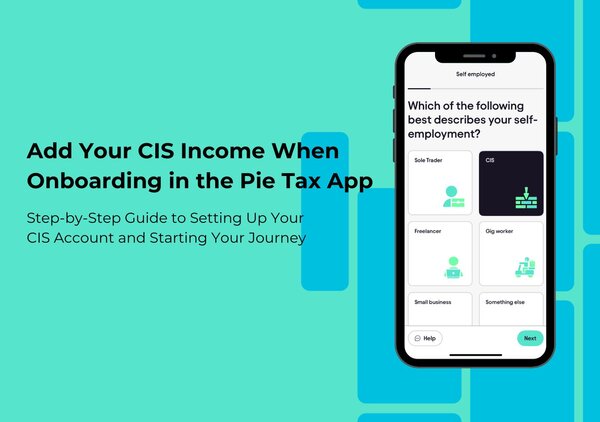
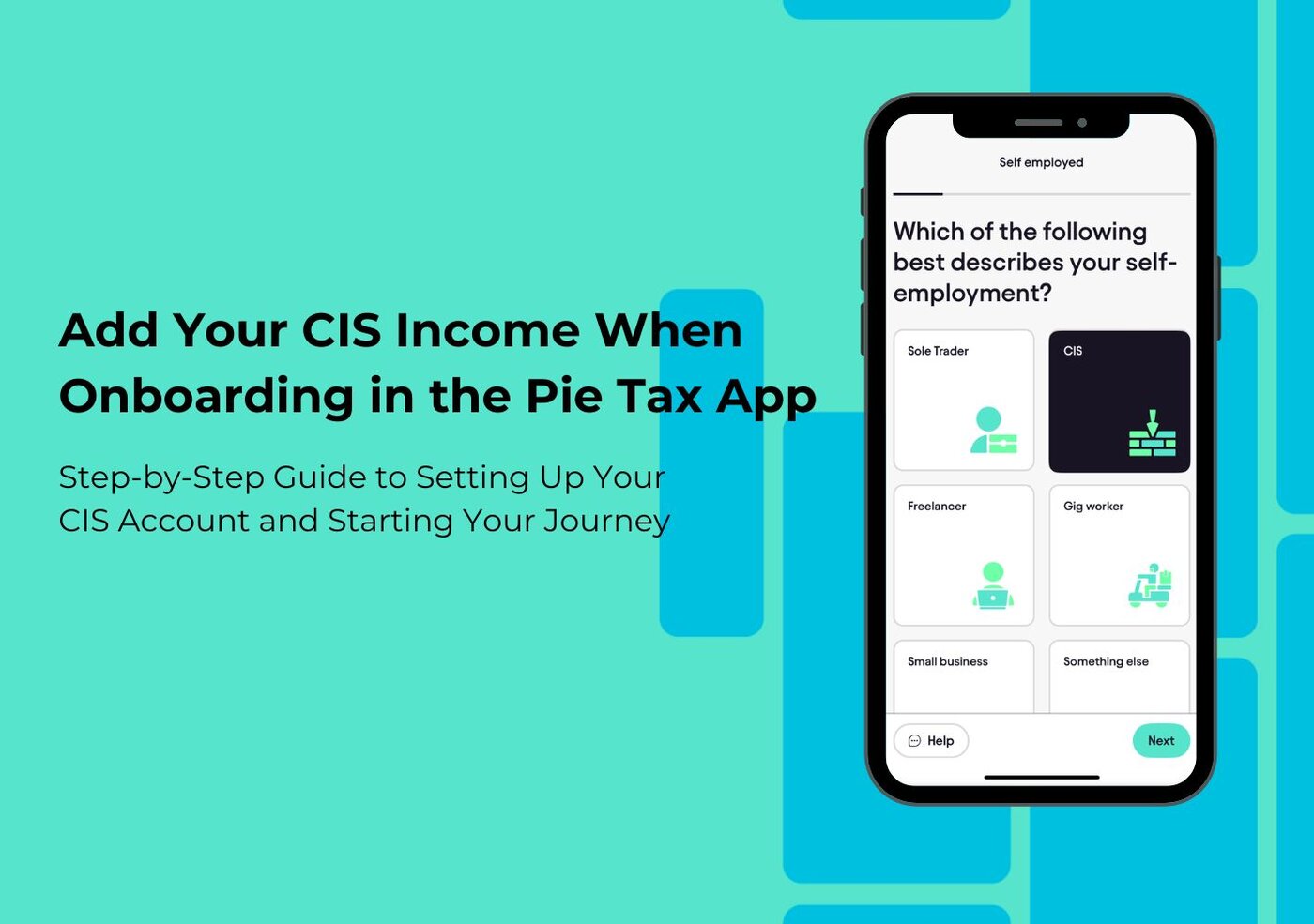
On the income type screen choose Self employed, then select CIS or Self-Employed / CIS as the subcategory so the app knows this income is subject to the Construction Industry Scheme.Choose CIS as a Subcategory

Enter a distinct name for this account, for example "CIS – Client Name" or "CIS – Project X". Using client or project names makes later tracking much easier.Add a Clear Account Title

Choose from the option that best describes the work you carry out (for example, sub-contracting, plastering, site supervision). Choose "others" if it's not mentioned in the choices.Select a Specific Industry

Pick one of the two options: Open banking for automatic import, or Add manually to enter transactions yourself.Choose How You Want to Add Income and Expenses

Follow the on-screen prompts to connect your bank. Complete the authorisation steps provided by your bank so PIE can securely import transactions.If you Choose Open Banking

Once open banking is connected, PIE will import transactions automatically. Review the imported items and swipe right to mark matches as income or expense, or adjust categories as needed.Reconcile Imported Transactions

Use the Quick Add option in the app to enter income and expense transactions. For each entry include date, amount, short description and category so records remain clear.If you Choose to Add Manually

Check all the details, save the account, and return to Income Accounts. Your CIS account will be listed there and PIE will update your bookkeeping and real-time tax overview accordingly. You can edit the account or add transactions at any time.Review and save, then view in Income Accounts

Troubleshooting Common Issues
Sometimes, issues can arise during the process. Here are some common problems and solutions:
Close and reopen the app to clear loading issues.Refresh the App
Ensure a stable internet connection for smooth data entry.Check Internet Connection
Use the latest app version for the best performance.Update the App
Frequently Asked Questions
How do I access the income section in the Pie Tax App?
Tap on “All Incomes” from the main dashboard to manage your income streams.
What types of income can I add in the app?
You can add employed, self-employed, capital gains, property income, and dividends/interest.
Is it easy to edit my income details after adding them?
Yes, you can view or edit any added income in the “All Incomes” section at any time.
What should I do if the app isn’t loading properly?
Try closing and reopening the app to refresh it, or check your internet connection.
Can I add multiple income streams?
Absolutely! The Pie Tax App allows you to add and manage multiple income sources for accurate tax reporting.