What Documents Do I Need for Investment Relief in the Pie Tax App?

What Documents Do I Need for Investment Relief in the Pie Tax App?
Charlotte Baroukh

Charlotte Baroukh

Tax Expert @ Pie

3 min read

Updated: 22 Mar 2026

3 min read

Updated: 22 Mar 2026

Guide to Uploading the Right Documents for Investment Relief

If you’re claiming investment relief in the Pie Tax App, it’s important to choose the correct relief type, upload the right supporting document, and select the correct tax year. The app uses this information to help record the claim correctly for your Self Assessment. HMRC’s venture capital guidance confirms that investors generally need the relevant compliance or tax certificate for schemes such as EIS, SEIS and VCT when making a claim.

Your Step-by-Step Guide

This guide explains, step by step, what to do and what each document means.

icon

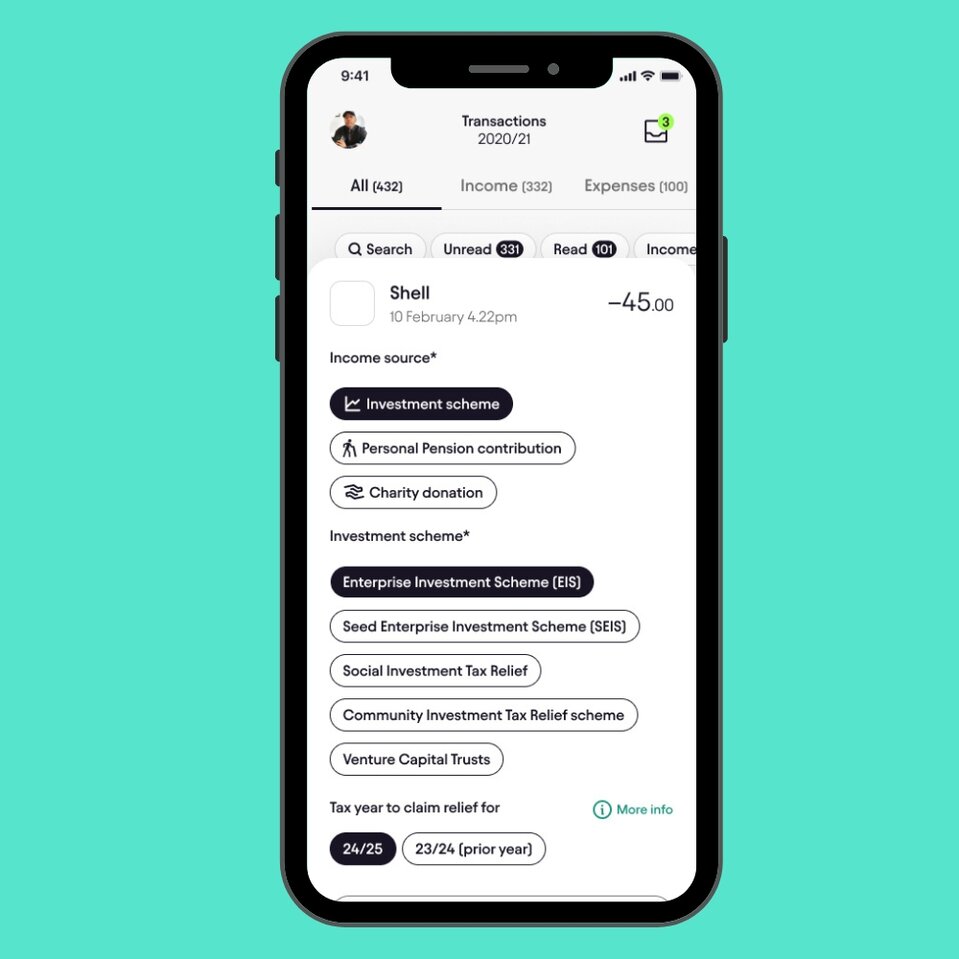
Open the transaction in Bookkeeping

Navigate to the Transactions screen from your Bookkeeping section.


Once there, browse through your list of transactions under the All, Income, or Expenses tabs. When you find the relevant transaction (for example, a payment like Shell -£45.00), tap on it to open the full transaction details.

icon

Select the Income Source

Under the ‘Your Next Step’ section, locate your submitted tax return. If it shows a ‘Failed’ status, swipe to view the details of the return. To begin the amendment process, tap on ‘Re-submit’.

icon

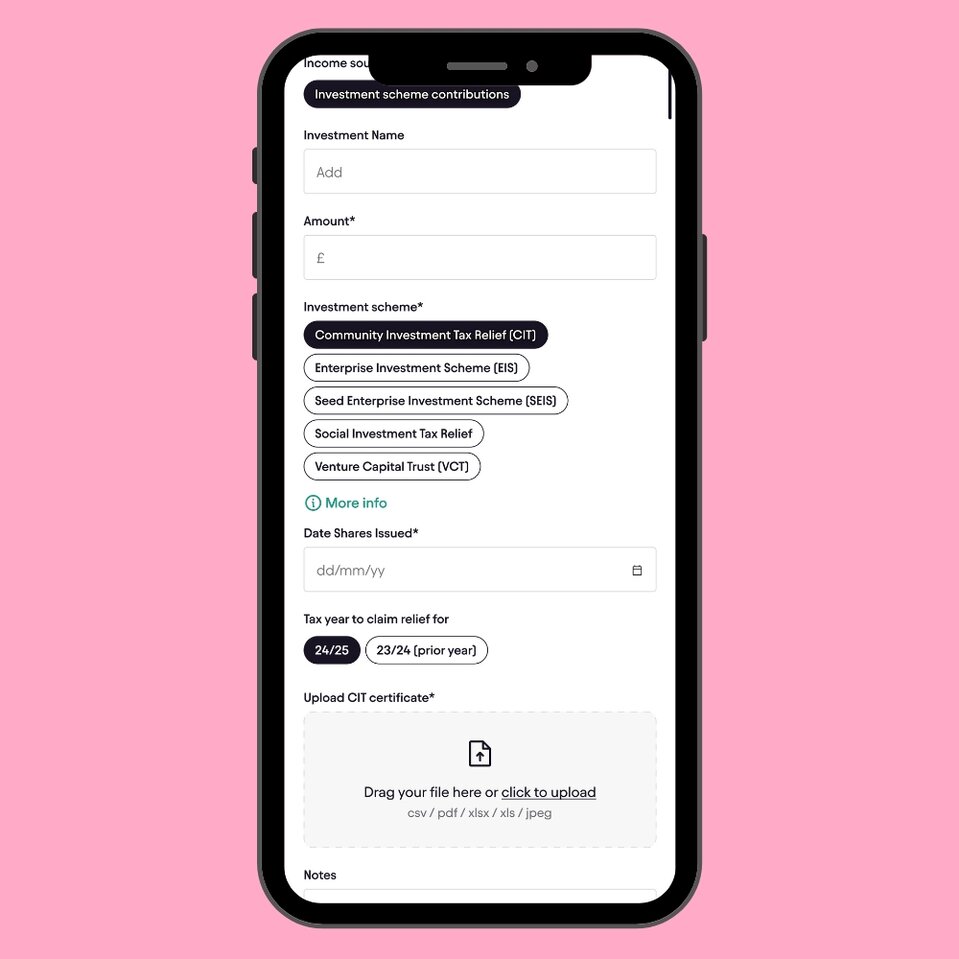
Select the Investment Scheme

f you selected Investment scheme, scroll to the Investment scheme section.


From the list provided, select the scheme that matches your investment, such as Enterprise Investment Scheme (EIS), SEIS, or Venture Capital Trust (VCT).


Make sure this matches the scheme shown on your official certificate.


icon

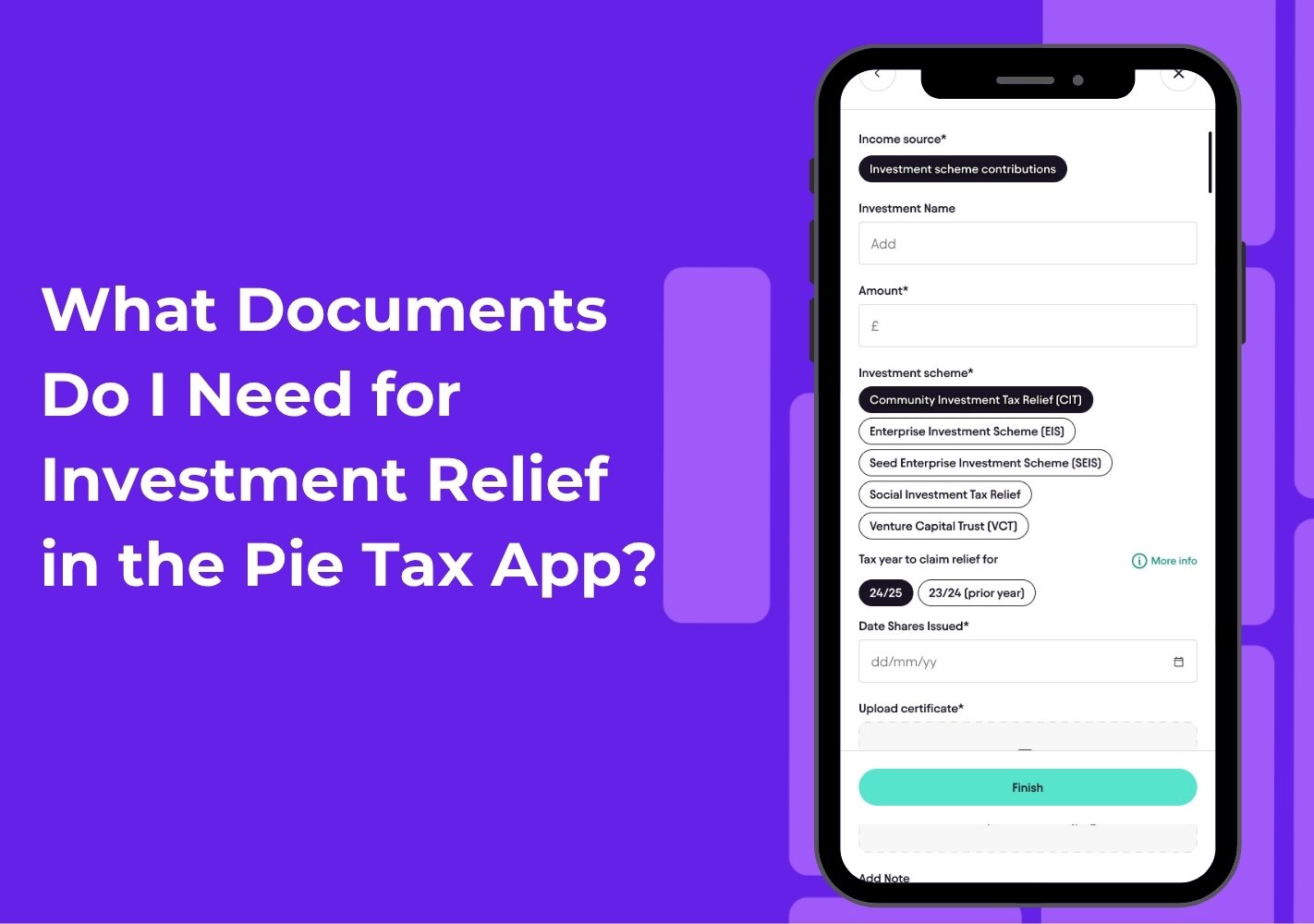
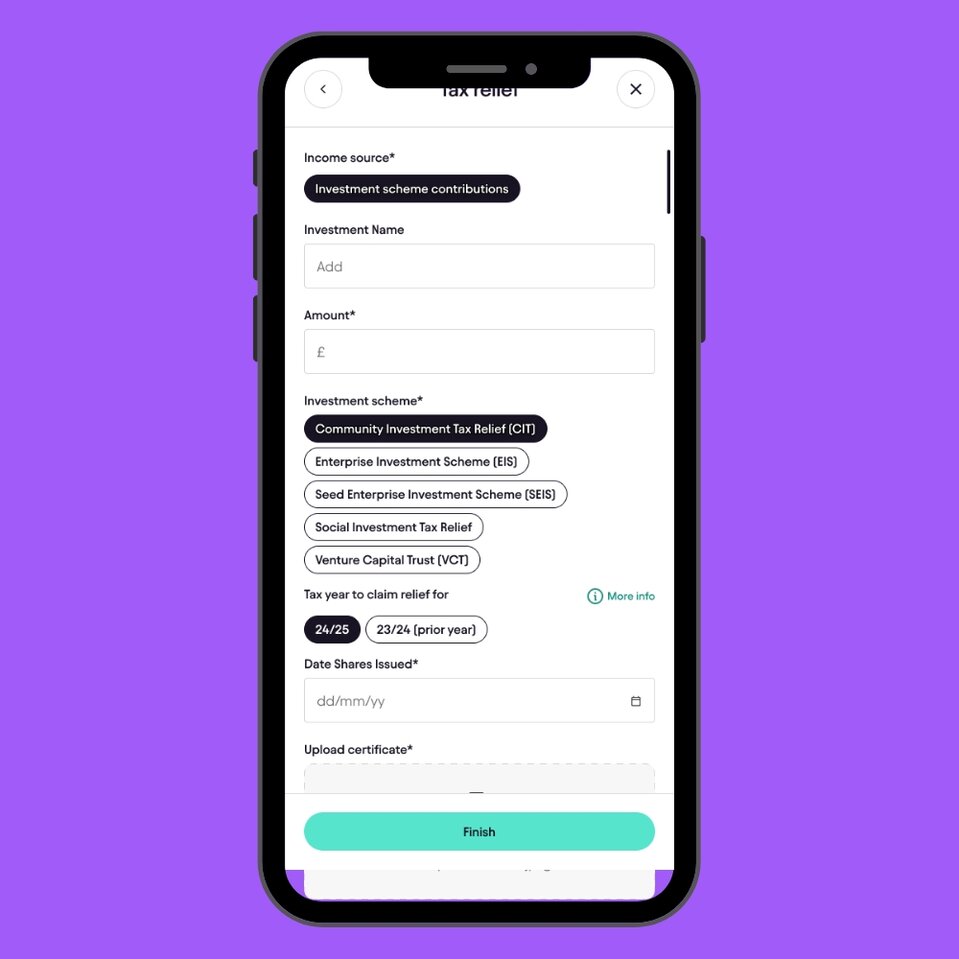
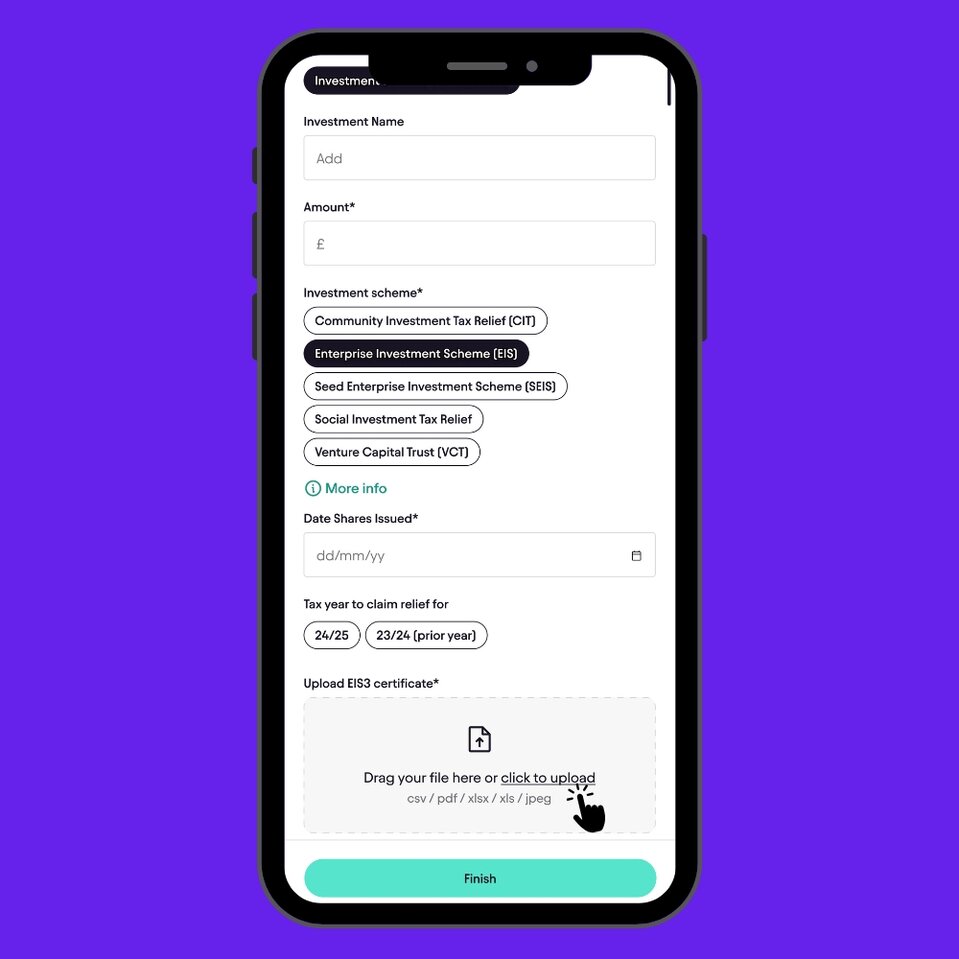
Upload your certificate or proof

After selecting the scheme, locate the Upload certificate section. Choose category which suits you like:

  • Enterprise Investment Scheme (EIS)
  • Seed Enterprise Investment Scheme (SEIS)
  • Social Investment Tax Relief
  • Community Investment Tax Relief scheme
  • Venture Capital Trusts

👉 Select the scheme that matches your certificate.


Tap on the upload button and add your supporting document (Image or PDF). This should be the official certificate or proof provided for your investment or contribution.

icon

Check the transaction date

Before saving, review the transaction date shown on the entry.


Make sure this reflects the actual date the payment or investment was made, as this determines which tax year the transaction falls into.

icon

Save your changes

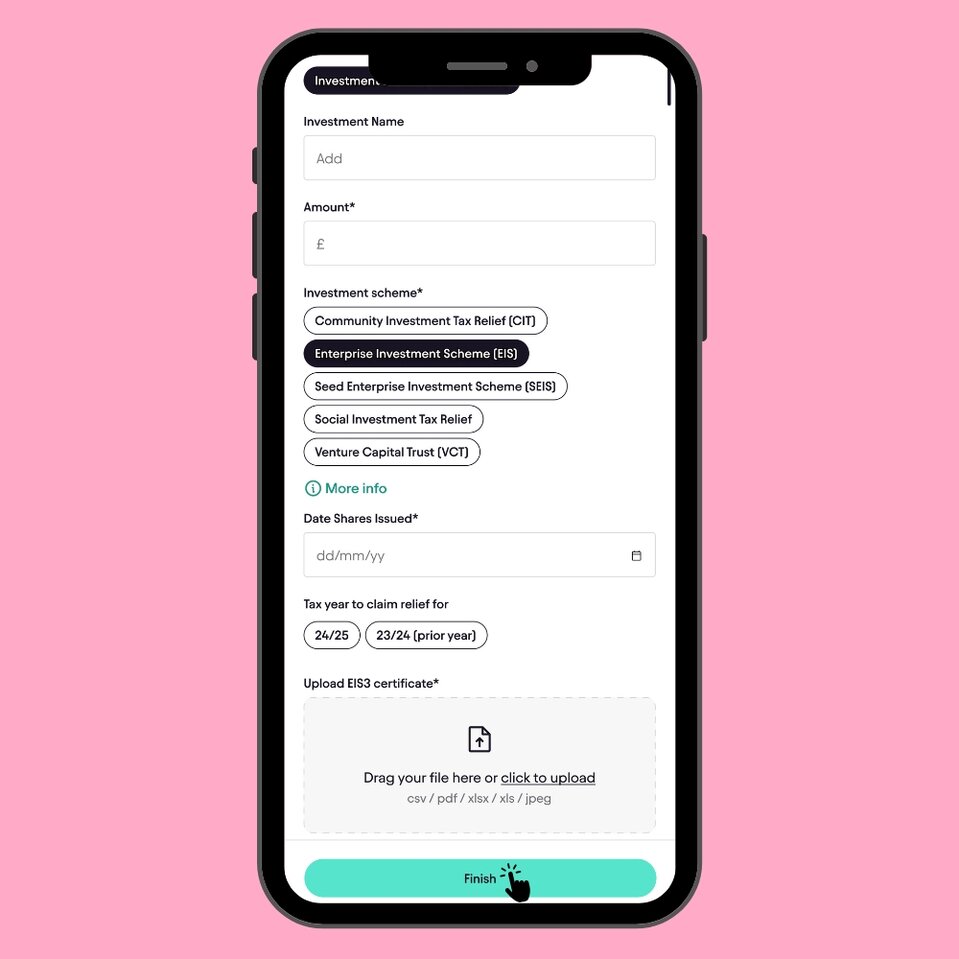
Once all details have been completed, scroll to the bottom of the screen and tap Save.


Your transaction will now be updated and correctly recorded for investment relief.

What Documents Are Required for Each Investment Relief?

When claiming investment relief, HMRC requires official certificates issued by the company or fund you invested in. These documents confirm that your investment qualifies for tax relief.

Below is a breakdown of the exact documents needed for each scheme and what they include:

Enterprise Investment Scheme (EIS)

  • Required document: EIS3 Certificate
  • What it is:
  • Issued by the company you invested in after HMRC approves the investment.
  • What it includes:
  • Company details
  • Amount invested
  • Date of share issue
  • Unique investment reference
  • Important:
  • You cannot claim EIS relief until you receive the EIS3 form.

Seed Enterprise Investment Scheme (SEIS)

  • Required document: SEIS3 Certificate
  • What it is:
  • Similar to EIS3, but for early-stage startup investments.
  • What it includes:
  • Investment amount
  • Share issue date
  • Company eligibility confirmation
  • Important:
  • This form is required before making an SEIS claim.

Venture Capital Trusts (VCT)

  • Required document: VCT Certificate
  • What it is:
  • Provided by the VCT fund manager after you purchase shares.
  • What it includes:
  • Number of shares purchased
  • Investment value
  • Date of issue
  • Important:
  • Keep this certificate as proof when claiming income tax relief.

Social Investment Tax Relief (SITR)

  • Required document: Compliance Certificate (SITR3)
  • What it is:
  • Issued by the social enterprise after HMRC approval.
  • What it includes:
  • Investment details
  • Confirmation the organisation qualifies
  • Important:
  • Required to support your claim for relief.

Community Investment Tax Relief (CITR)

  • Required document: CITR Certificate
  • What it is:
  • Issued by an accredited Community Development Finance Institution (CDFI).
  • What it includes:
  • Investment amount
  • Date of investment
  • Accreditation confirmation
  • Important:
  • Relief is usually spread over multiple years, so keep this document safe.

Personal Pension Contributions

  • Required document: Pension Contribution Statement or Receipt
  • What it is:
  • Provided by your pension provider.
  • What it includes:
  • Contribution amount
  • Date paid
  • Provider details
  • Important:
  • HMRC relief is based on the date the contribution is paid, not when it is recorded.

Final Summary

Claiming investment relief in the Pie Tax App is straightforward once you have the right information in place. The key is to make sure each transaction is categorised correctly, the appropriate scheme is selected, and the correct supporting document is uploaded.


For most investment schemes, especially EIS, SEIS, and VCT, the official certificate (such as an EIS3 or SEIS3 form) is essential before a claim can be made. Without it, HMRC will not accept the relief.

Before saving your transaction, always double-check:

  • The income source and scheme selection
  • The uploaded document matches your investment
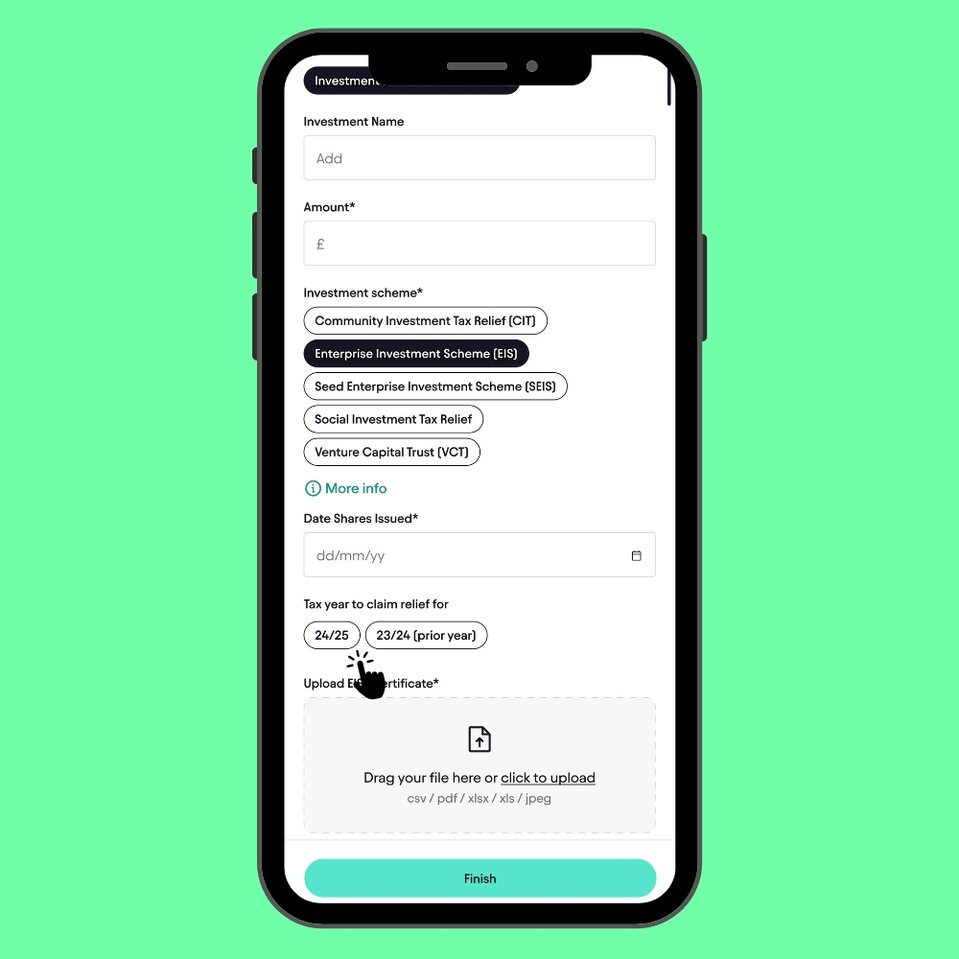
  • The tax year you are claiming for
  • The transaction date reflects when the payment was made

Taking a moment to review these details helps ensure your Self Assessment is accurate and reduces the risk of delays or corrections later on.

Your Step-by-Step Guide

By following these steps, you can confidently amend and resubmit your tax return, avoiding common pitfalls and ensuring that your submission is accepted by HMRC.

icon

Access the Tax Overview

Start by opening the Pie Tax App and navigating to the homepage. Tap on the ‘Tax Overview’ button in the navigation bar. Here, you'll see the status of your submitted tax return. It will indicate whether your submission was successful or failed.

icon

View or Re-submit Your Tax Return

Under the ‘Your Next Step’ section, locate your submitted tax return. If it shows a ‘Failed’ status, swipe to view the details of the return. To begin the amendment process, tap on ‘Re-submit’.

icon

Review Your Progress

Before re-submitting, ensure all the information in your return is accurate. Under the ‘Your Progress’ section, tap on each pill-shaped icon to verify the details you've entered. This section will guide you through various aspects of your tax return that need to be checked.

icon

Check Your Personal Information

Under ‘Your Info’, review your name, address, DOB, UTR, and NI number. Make any necessary changes and upload a valid Photo ID and Proof of Address for HMRC checks. Ensure you've selected the correct bank account for your tax refund.

icon

Verify Your Income Details

Next, review the ‘Your Incomes’ section. Check that all income received within the tax year is accurately reported. This includes the business name, total income and allowable expenses, tax deductions, student loans, and benefits figures. If any information is incorrect or missing, update it accordingly.

icon

Review Tax Calculations

Navigate to the ‘Tax Calculations’ section. Carefully read through how your tax overpayment or underpayment was calculated. This step is crucial to ensure that your tax return is accurate before resubmission.

icon

Re-submit Your Tax Return

Once you've confirmed that all information is correct, return to the ‘Tax Overview’ section and tap ‘Re-submit’.

icon

Choose Your Submission Method: Final Check Service

For a small fee, our tax experts will review your return to ensure that all information is accurate. This service also allows you to submit your return without needing to enter your HMRC login credentials, as we will handle the submission for you.

icon

Choose Your Submission Method: Submit It Yourself

Tap ‘Submit Myself’ and enter your User ID and password for your HMRC personal tax account.

icon

Confirm Successful Submission

After submitting, return to your tax overview in the app. You'll receive a notification confirming that your tax return has been submitted successfully.

Your Step-by-Step Guide

By following these steps, you can confidently amend and resubmit your tax return, avoiding common pitfalls and ensuring that your submission is accepted by HMRC.

icon

Access the Tax Overview

Start by opening the Pie Tax App and navigating to the homepage. Tap on the ‘Tax Overview’ button in the navigation bar. Here, you'll see the status of your submitted tax return. It will indicate whether your submission was successful or failed.

icon

View or Re-submit Your Tax Return

Under the ‘Your Next Step’ section, locate your submitted tax return. If it shows a ‘Failed’ status, swipe to view the details of the return. To begin the amendment process, tap on ‘Re-submit’.

icon

Review Your Progress

Before re-submitting, ensure all the information in your return is accurate. Under the ‘Your Progress’ section, tap on each pill-shaped icon to verify the details you've entered. This section will guide you through various aspects of your tax return that need to be checked.

icon

Check Your Personal Information

Under ‘Your Info’, review your name, address, DOB, UTR, and NI number. Make any necessary changes and upload a valid Photo ID and Proof of Address for HMRC checks. Ensure you've selected the correct bank account for your tax refund.

icon

Verify Your Income Details

Next, review the ‘Your Incomes’ section. Check that all income received within the tax year is accurately reported. This includes the business name, total income and allowable expenses, tax deductions, student loans, and benefits figures. If any information is incorrect or missing, update it accordingly.

icon

Review Tax Calculations

Navigate to the ‘Tax Calculations’ section. Carefully read through how your tax overpayment or underpayment was calculated. This step is crucial to ensure that your tax return is accurate before resubmission.

icon

Re-submit Your Tax Return

Once you've confirmed that all information is correct, return to the ‘Tax Overview’ section and tap ‘Re-submit’.

icon

Choose Your Submission Method: Final Check Service

For a small fee, our tax experts will review your return to ensure that all information is accurate. This service also allows you to submit your return without needing to enter your HMRC login credentials, as we will handle the submission for you.

icon

Choose Your Submission Method: Submit It Yourself

Tap ‘Submit Myself’ and enter your User ID and password for your HMRC personal tax account.

icon

Confirm Successful Submission

After submitting, return to your tax overview in the app. You'll receive a notification confirming that your tax return has been submitted successfully.

Simple Steps to Add Property Income

Follow these quick steps to add your property income in the Pie App:

Want to get smarter about taxes?

The Tax Pible has tax tips, guides, video tutorials, and expert insights.


Stay up to date with the latest tax news and watch the UKs first tax podcast - the Piecast

Want to get smarter about taxes?
Whatsapp Pie Tax